

English tutor · learn English
Learn English from the language you already speak.
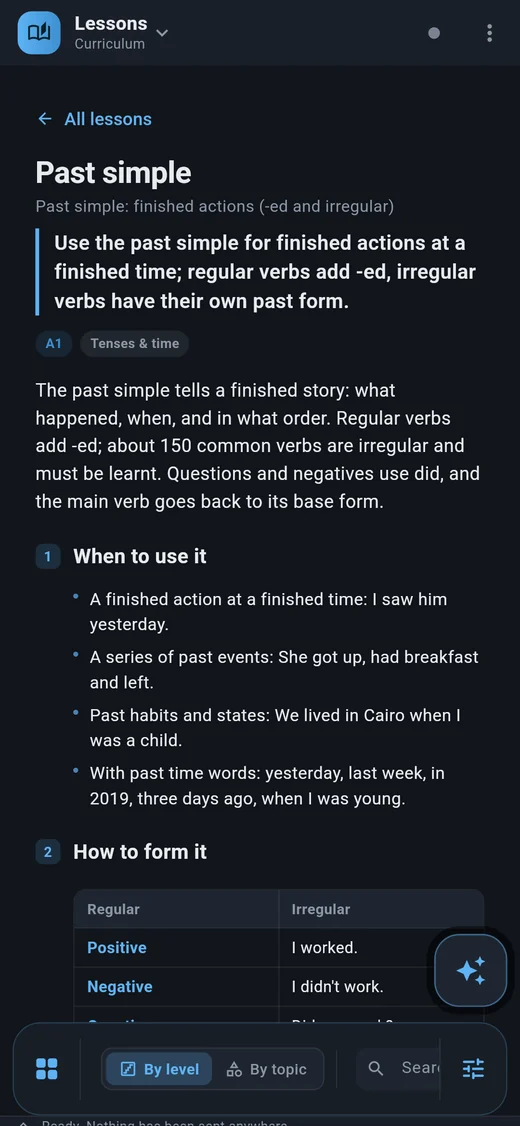
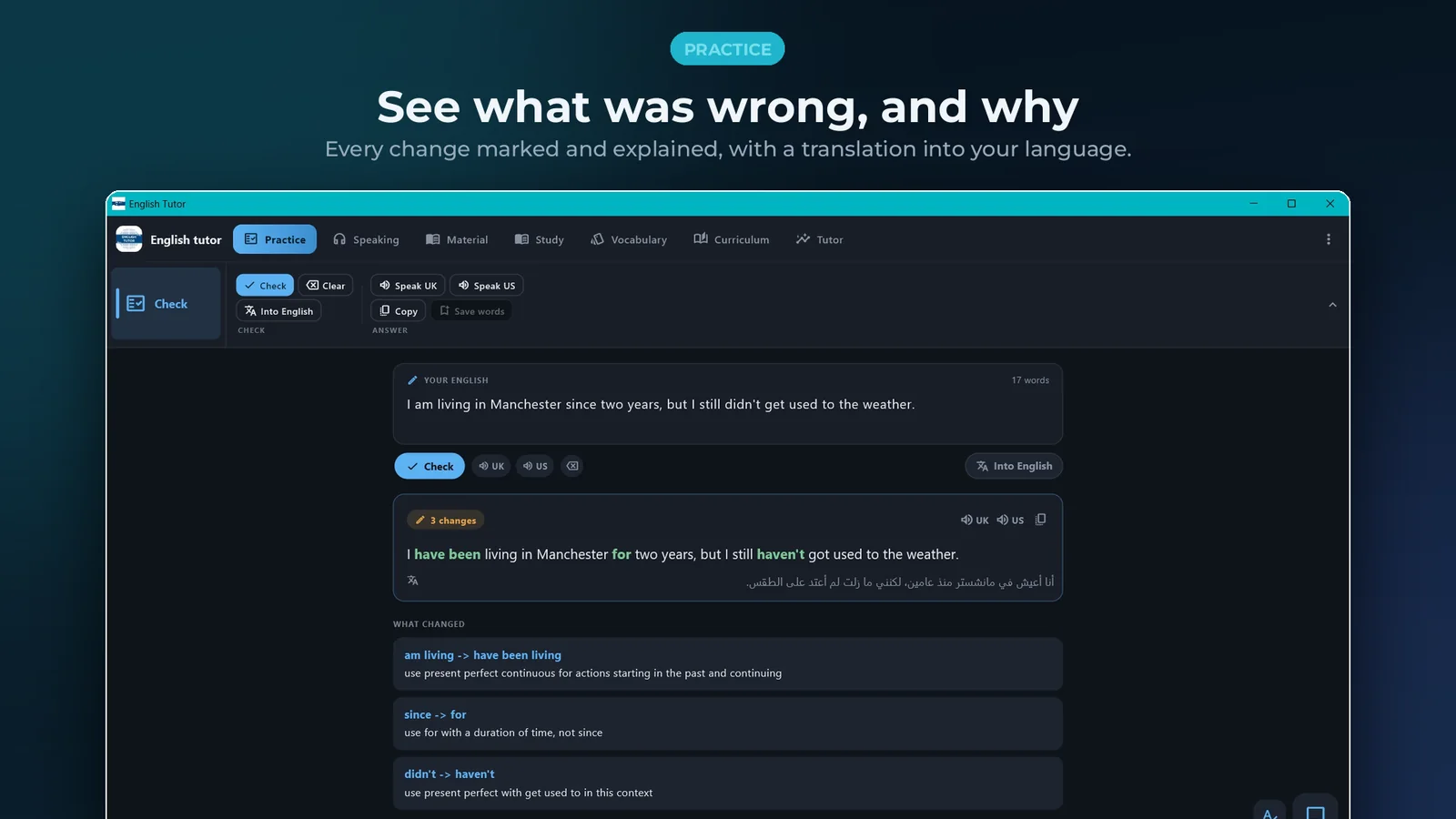
Write a sentence and every change comes back marked, with the reason in your own language. Say what you mean in Arabic, German, Chinese or any other language and get the English a native speaker would say. Every word you meet is kept.


Watch the tour
A run through the whole app, recorded on the Windows build: checking what you write, turning your own language into English, a recording read along line by line, a photographed exercise answered and checked, and a course book planned for you.
Four minutes. Sound on for the British and American voices the app reads with, or turn on the captions. Also on YouTube.
The same tutor, on your desk
The desktop app pairs with your phone by one QR scan, so your words and settings come across with you.
Coming to Google Play and the Microsoft Store
Launching soon Coming soon
English tutor is on its way to Google Play and the Microsoft Store. This page will carry the store links the day each one opens.
-
1
Want it before then?
Write to us with the Google account your phone uses, and we'll add you to the test.
Ask for early access → -
2
Free to try
On Android, a few minutes every day are free. One purchase, once, unlocks it for good. No subscription.
-
3
On Windows too
The desktop build is bought once on the Microsoft Store, and pairs with your phone by a QR scan.
Set up your free Gemini key
English tutor’s AI half runs on a Google Gemini key that you create yourself, so the requests go straight from your device to Google rather than through us. It is free, takes about two minutes, and never asks for a card. The app walks you through it, or watch it here once.
1 min 18 s · narrated · recorded in Daybook, another of our apps — the AI Studio part is identical
-
Open the key page
In English tutor, go to Settings → Gemini AI. The API key box at the top reads No key until you fill it.
-
Go to AI Studio
Open
aistudio.google.com/apikeyin your browser. Any Google account works. -
Accept the terms
Tick the acknowledgement box and press Continue. No billing account is created and no card is requested.
-
Create the key
Press Create API key, keep the project it suggests, then press Create key.
-
Copy it straight away
Tap the copy icon next to the key. It is shown once — if you lose it, just make another.
-
Paste it back and save
Return to English tutor, paste the key into the box and press Save. The model list fills, which is how you know it works.
Explained in your language, practised in English
Corrections you can learn from
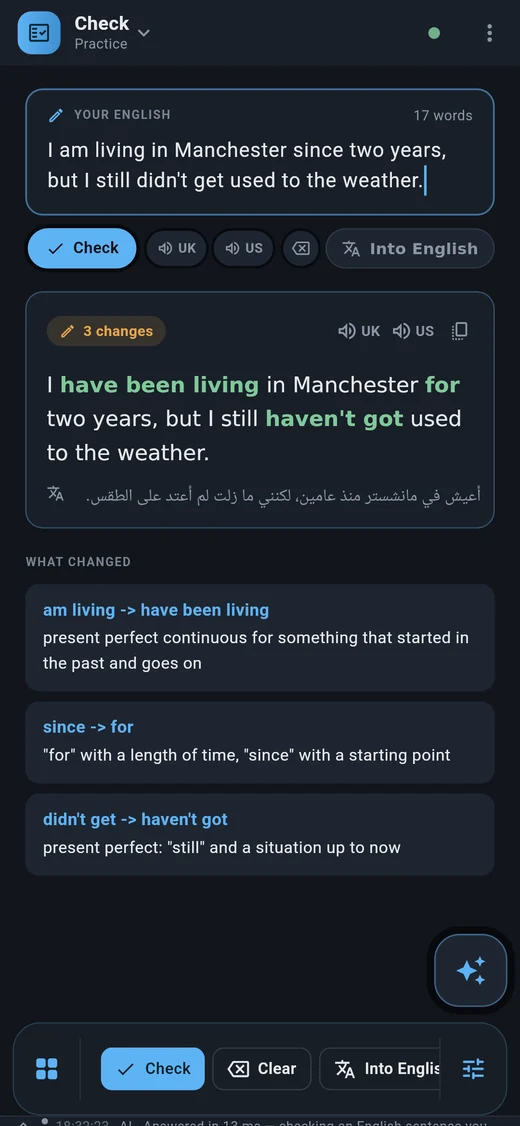
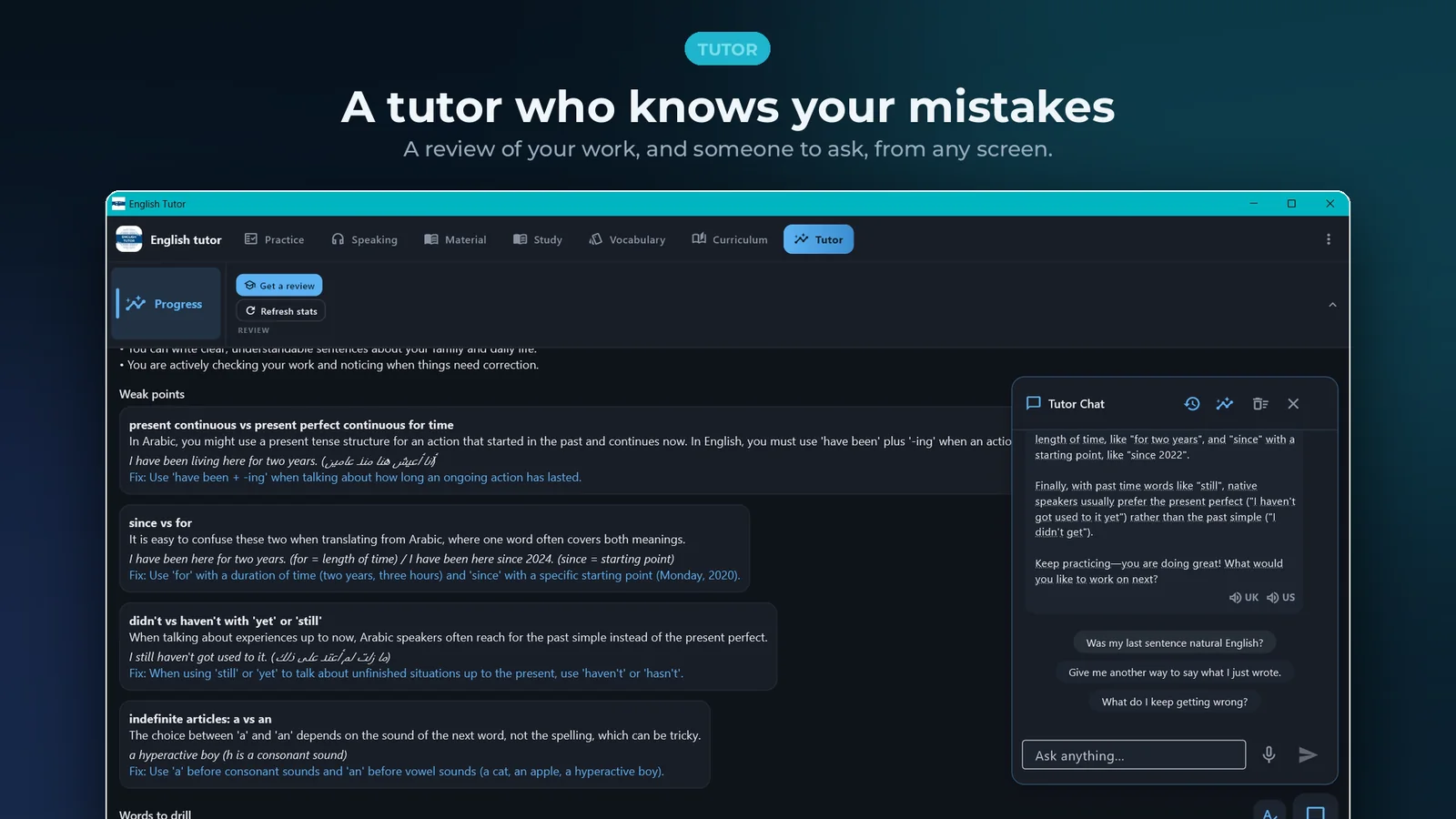
Every change marked, the rule named — “for with a length of time, since with a starting point” — in your own language or in simple English.
Say it your way
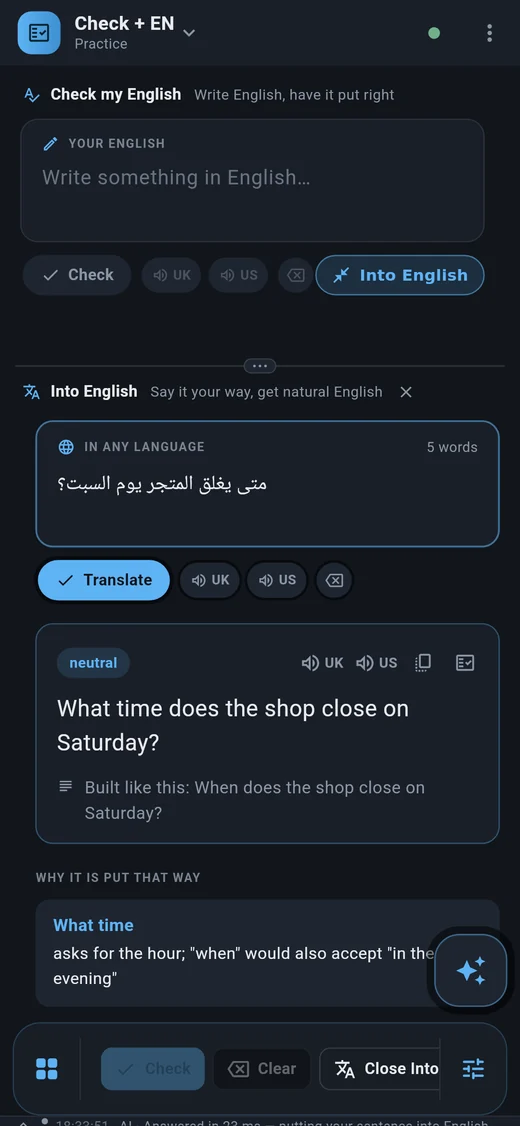
Write what you mean in any language and get natural English back, with how it is built and other ways to say it.
Any page, tappable
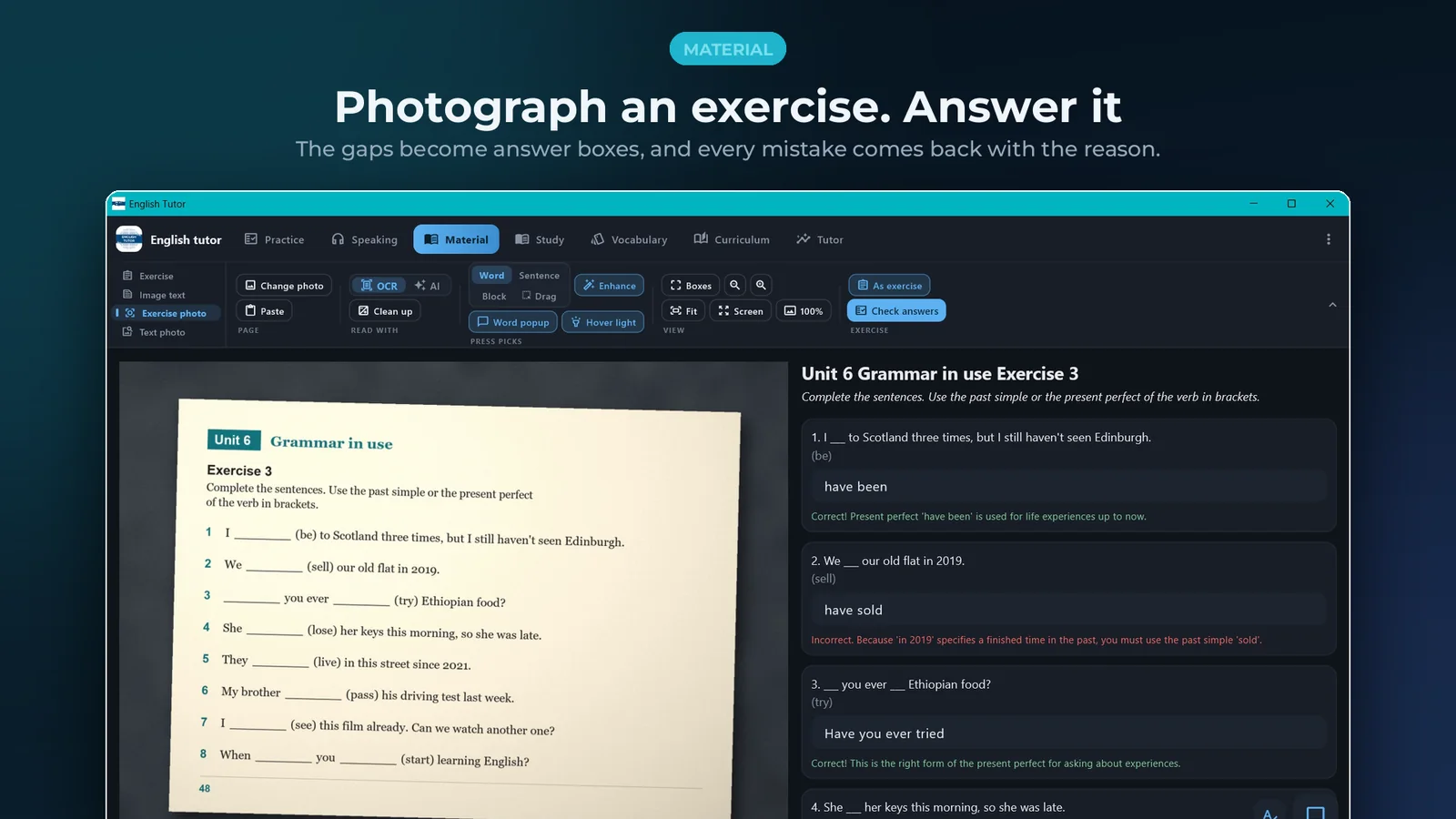
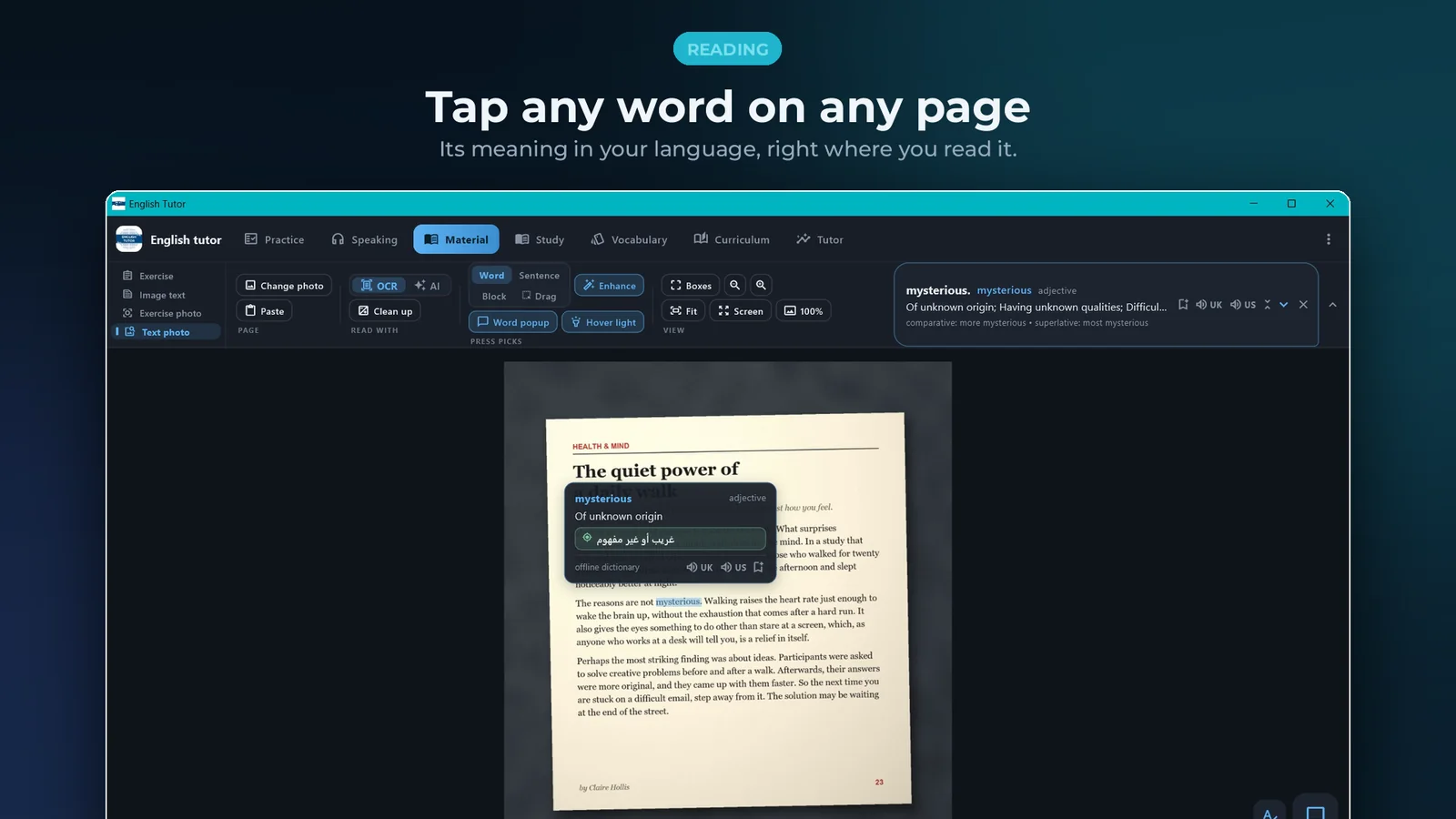
Photograph a textbook, an article or a sign. Every word opens its meaning, and exercises on the page can be answered and checked.
Listen and speak
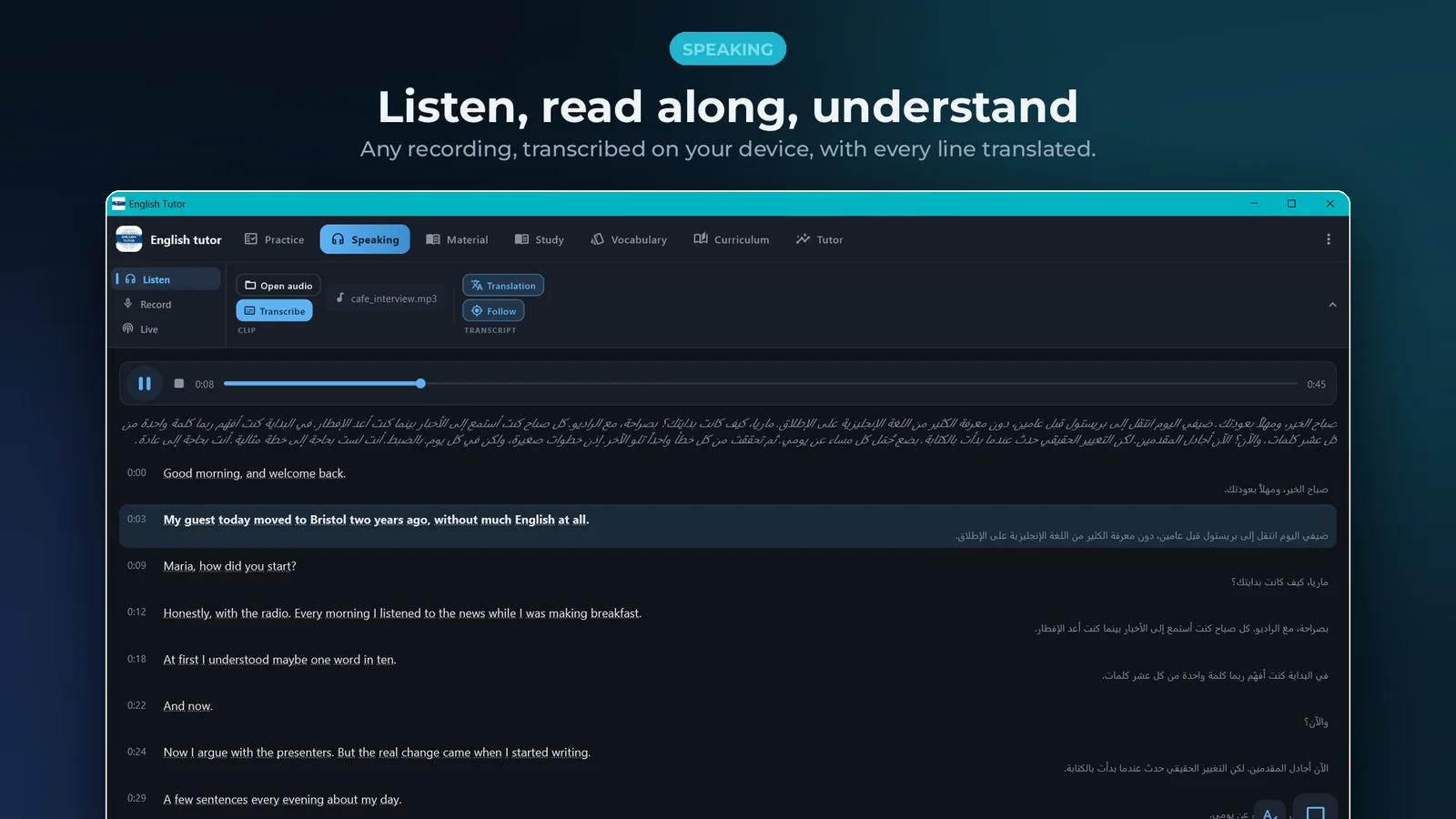
Record yourself or open any English audio for a timed transcript with translations. Hear every line in a British or American voice.
Your course book, planned
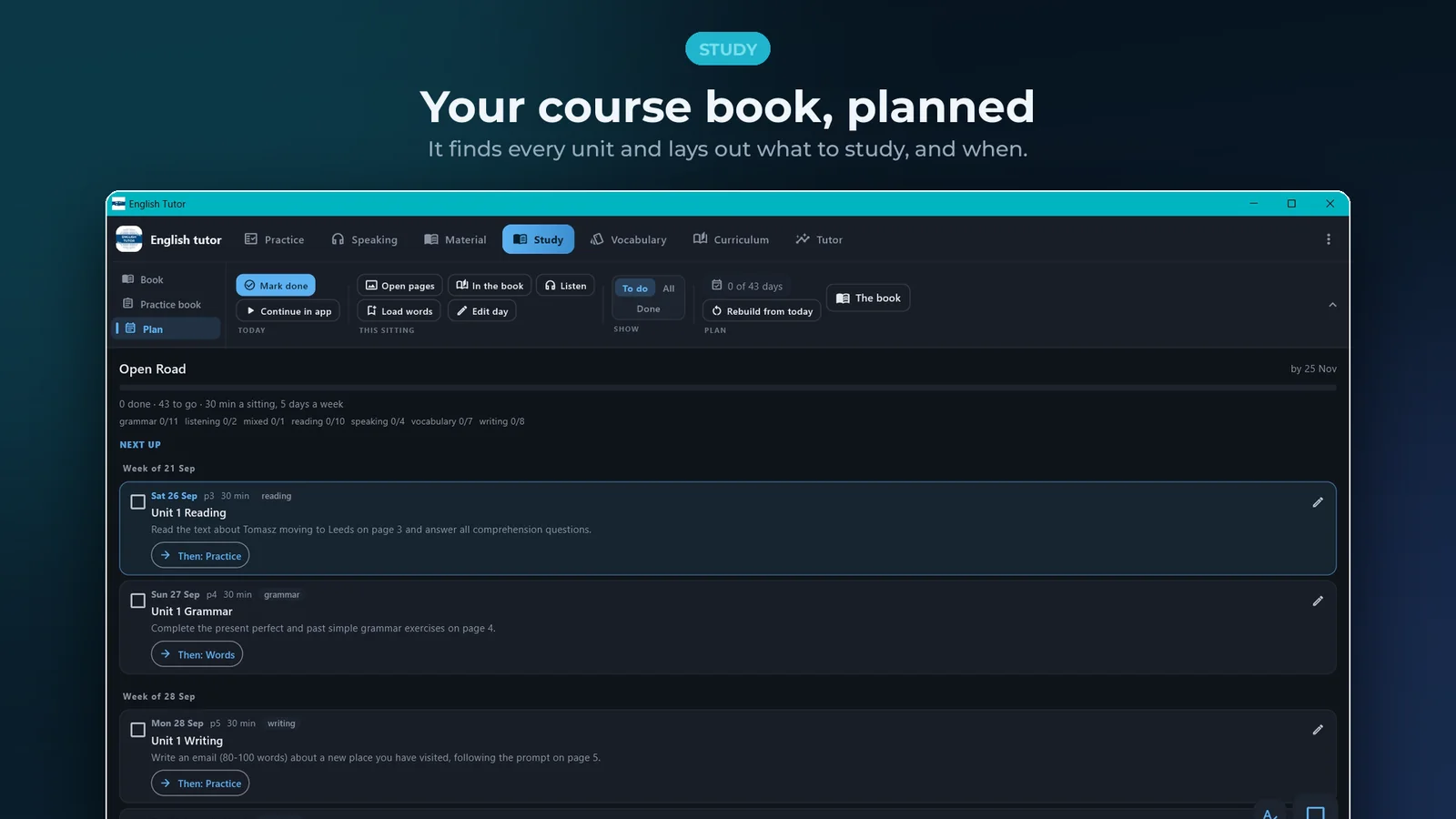
Import a PDF course book. It finds every unit, turns exercises into answer boxes, and lays out a study plan at your pace.
Words that stay, lessons that fit
Saved words come back as flashcards. Grammar lessons from A1 upward, and a review built from your own mistakes.
Four steps cover most of it
Scroll and the phone follows along, or tap a step to jump to it.
Write a sentence
Type it the way you would say it and press check. Every change comes back marked, with the reason in your language.
Say it your way
Write what you mean in your own language and get the English a native speaker would say.
Keep the words
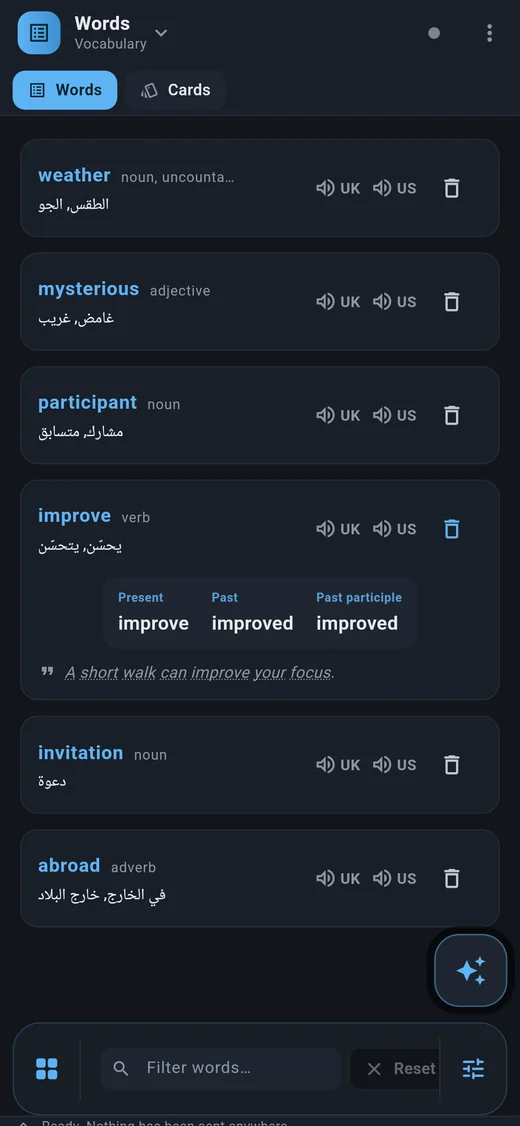
Save any word with its meaning, all its forms, and UK and US pronunciation.
Review what you saved
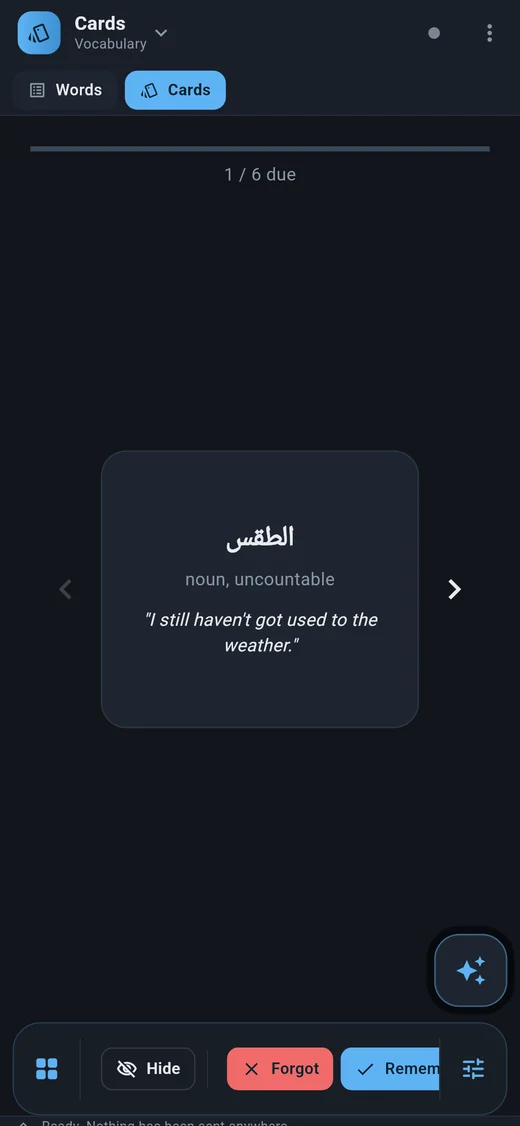
Saved words come back as cards, spaced so each one returns just before you'd forget it.
Check
What stays, and what doesn't
Pick anything English tutor handles.
Bring your own AI key
The AI features aren't a service we run for you. You make your own free Gemini key and paste it into Settings, and the app calls Google directly from your device, as you. The key sits in the app's own settings storage and never reaches us. Your use of the API is between you and Google.
Works without a key offline
If you never add one, the offline half keeps working: the bundled dictionary, tap-a-word lookup, word forms, your saved list, the review cards, the PDF reader, text recognition and speech-to-text.
Camera pages & exercises
Opens only when you start it: photographing a page or an exercise, or scanning the pairing QR code from the desktop app. Recognition runs locally first, so where the device can read the text itself, the text is sent rather than the picture. Photos aren't uploaded anywhere else or added to any gallery.
Microphone local by default
Used only while you're recording, after you press record. Transcription runs on the device by default — Whisper through sherpa-onnx on Android, faster-whisper on Windows — and your audio stays there. Sending audio to Gemini is a fallback for when local transcription is off or unavailable.
Reading aloud your choice of voice
Only when you press a speaker button, and only the word or sentence being read. Piper voices run on the device; the system voice is your device's own; the Google and Azure voices send just that text to be spoken.
Google sign-in optional · drive.file
Optional, and there for one thing: syncing your word list through your own Drive with the
narrow drive.file scope, which reaches nothing but the files the app created.
No feature is locked behind signing in.
What it doesn't do
- No ads, no analytics, no trackers, no crash reporting.
- No accounts, no back end, no server of ours.
- Your sentences, recordings, photos and word list never reach us.
The privacy policy goes feature by feature and says exactly what is and isn't sent to Gemini.
Platforms
- Android
- Coming to Google Play as English tutor (
com.ahmedyosri.english_tutor). - Windows
- Coming to the Microsoft Store, with one-scan QR pairing to carry your words and settings across from the phone.
- Price
- Free to try on Android, a few minutes every day; one purchase unlocks it for good. Bought once on the Microsoft Store for Windows. No subscription either way.
Questions
Which languages can it explain in?
Does it work offline?
Do I pay for the AI features?
Found a bug, or want something added? Contact us. It reaches the developers who build it.